Your Google business review link is a short URL that takes a customer straight to the review box for your business. They don't have to search for you on Google, scroll past competitors or work out where the "write a review" button is. It is the single most useful thing to have ready when you ask for reviews, and it takes about a minute to get.
This guide shows how to get your Google review link and QR code, where contractors should share them, and what to check so the link actually works for customers.
How to get your Google review link
Google calls this "request reviews" in your Business Profile. On a computer:
- Sign in to the Google account that manages your Business Profile, then open your profile at business.google.com.
- Select Read reviews.
- Select Get more reviews.
- In the box that opens, select the copy icon to copy the link.
That's it. This is the same link whether you call it your Google my business review link, your Google Business Profile review link or "my Google reviews link": it belongs to your profile, so you can reuse it everywhere.
Paste it somewhere you'll find it again: a note on your phone, a text shortcut, the message templates in your field service software and your email signature.
Test it before you share it. Open the link on your phone in a private browser window. It should open the review box for your business, with your business name at the top. If it opens a different listing, check that you copied the link from the right profile and account, and look for duplicate listings; see our Google Business Profile guide for how to deal with duplicates.
How to create a QR code for Google reviews
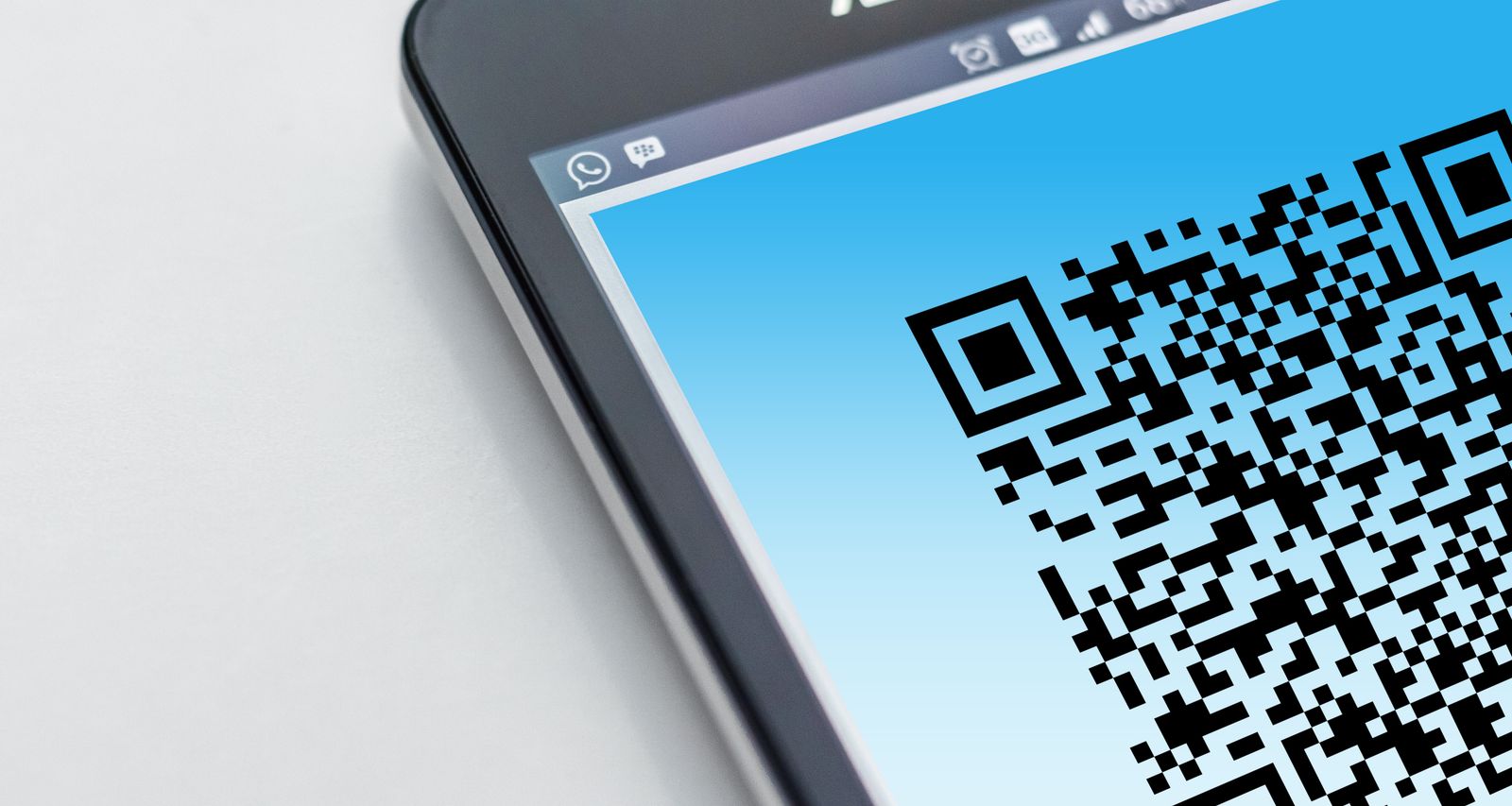
You don't need a separate QR code generator. Google creates one for the same review link:
- Open Read reviews → Get more reviews as above.
- Right-click the QR code and choose Save image as… to download it.
Google currently creates review QR codes only in a computer browser, so do this from a laptop or desktop rather than your phone.
If you do use another QR tool, choose a static code that contains your review link directly. Some "dynamic" QR services send the scan through their own redirect, and the code stops working if that service changes or your subscription ends, which is a problem for something printed on 500 invoices.
Print the code large enough to scan easily and add a line of text next to it, such as "Scan to review us on Google".
Where contractors should share the link
The best request is personal and quick: the technician mentions it at the end of the job, and a text with the link follows soon after. Our guide on how to get more Google reviews covers timing and the full routine. These are the places the link and QR code earn their keep:
- Text message after the job. Usually the easiest way for a customer to leave a review on the spot, later that day. Keep it to one sentence and the link.
- Job-complete emails and invoices. Put the link near the top, not buried under payment terms. Google suggests adding the link to receipts and thank-you emails and displaying the printed QR code; a printed invoice works the same way.
- Leave-behind cards. A small card with the QR code, left on the counter or with the paperwork, lets customers review once they've seen the result.
- Email signature. A one-line "Review us on Google" link for the office team.
- Your website. A "Leave us a review" button on your reviews or contact page, linking to the review link. It helps past customers who come back to your site.
- Field service software. Most tools let you add the link to completion messages, or send review requests automatically. See our Housecall Pro review, or dedicated review tools like NiceJob and Podium.
Copy-and-paste messages with your review link
Text after the job:
Hi {first name}, thanks for choosing {Business Name} today. If you have a minute, we'd really appreciate an honest Google review: {review link}
Email signature line:
How did we do? Leave us a Google review: {review link}
Printed card or invoice next to the QR code:
Thank you for choosing {Business Name}. Scan to leave us an honest review on Google.
None of these suggest a star rating or ask for specific wording, and none of them should.
Rules to follow when you share the link
Google's policies apply to how you ask, not just to what customers write:
- No incentives. Don't offer discounts, free services, gift cards or entries into a drawing in exchange for a review. Google treats this as fake engagement.
- Ask everyone. Don't send the link only to customers you think are happy. Selectively asking for positive reviews (review gating) is prohibited.
- Don't pressure. Leaving a card or texting the link is fine. Standing over a customer until they post a review is not: Google says businesses shouldn't require or pressure customers to review while on the premises.
Customers need a Google Account to post a review, but it can be set up with any email address, not just Gmail.
When customers say the link doesn't work
A few common problems, and what to do:
- "It asks me to sign in." That's normal: Google needs to know who is writing the review. Customers can use any Google Account.
- "It opened the wrong business." Check that you copied the link from the right profile, and look for duplicate listings of your business.
Once reviews start coming in, reply to them, especially the critical ones. Our guide on how to respond to negative Google reviews has examples written for contractors.